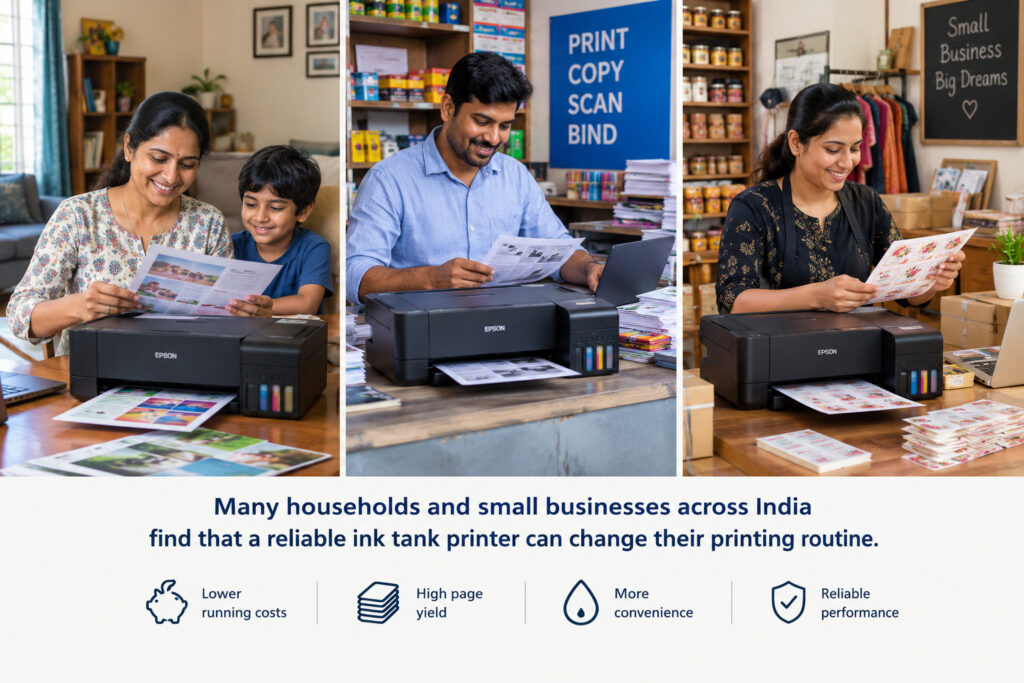
Are You Getting the Most Out of Your HP Printer WiFi Color Ink Tank? Have you wondered whether your home office works hard enough for your budget? Many households and small businesses across India find that a reliable ink tank printer can change their printing routine. Moving from traditional cartridges can save money over time and make printing easier.
Are You Getting the Most Out of Your HP Printer WiFi Color Ink Tank?
Modern ink tank technology uses a clever, refillable reservoir system for high-volume needs. This hardware offers wireless convenience, so students and families can print documents from any room. An hp printer wifi color ink tank is a smart choice for people who value efficiency and steady quality.
This guide explains how to master your device, from initial setup to connectivity troubleshooting. It also offers practical tips to reduce waste and increase your page yield. Whether you manage school projects or professional reports, these tips can improve results every single day. Are You Getting the Most Out of Your HP Printer WiFi Color Ink Tank?
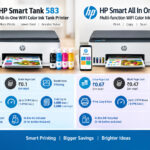
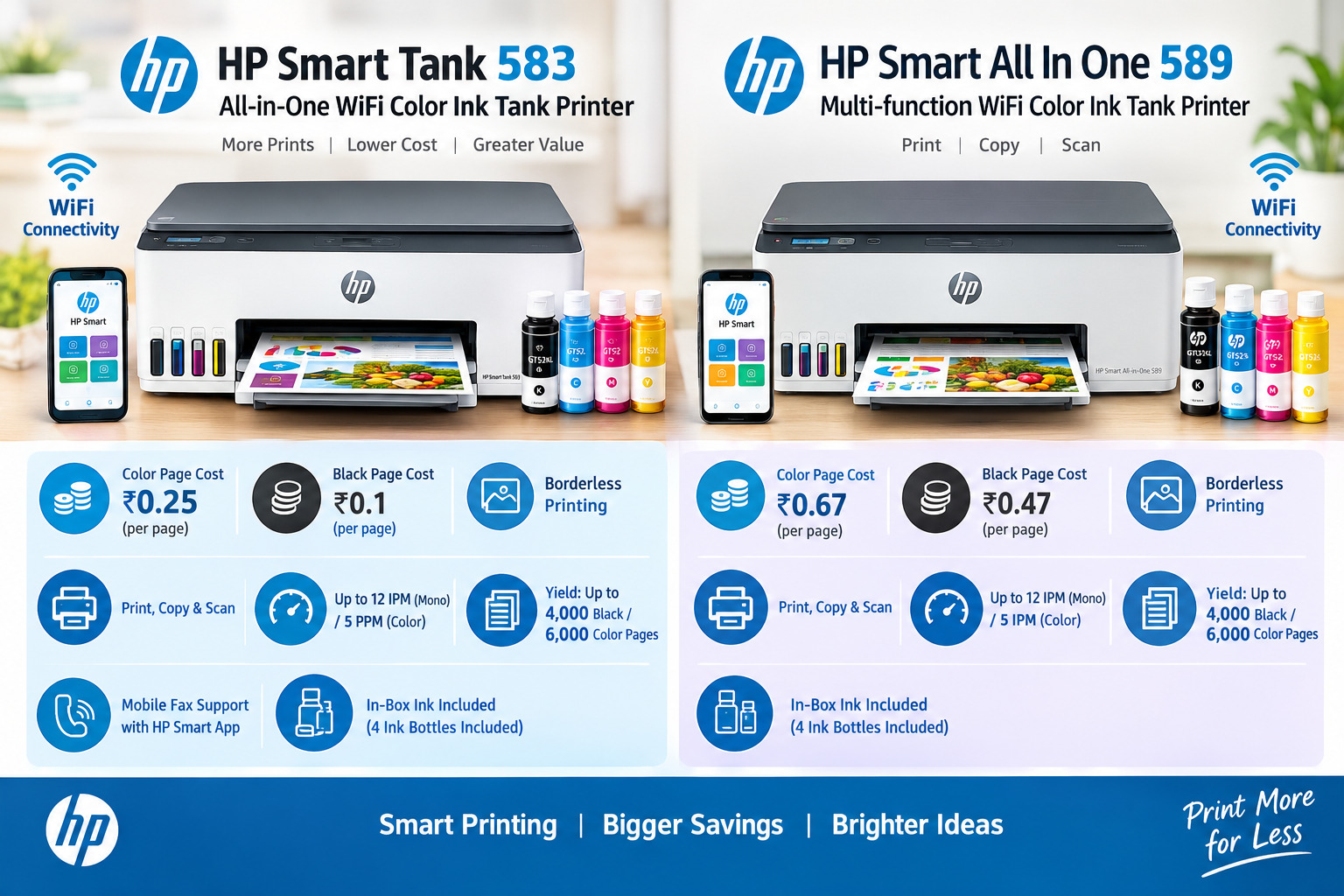
HP Smart Tank All in One 583 Multi-function WiFi Color Ink Tank Printer (Color Page Cost: 0.25 Rs. | Black Page Cost: 0.1 Rs. | Borderless Printing) Print, Copy & Scan, Up to 12 IPM Mono / 5 PPM Color, Yield: Up to 4,000 Black / 6,000 Color Pages, Mobile Fax Support with HP Smart App, In-Box Ink Included
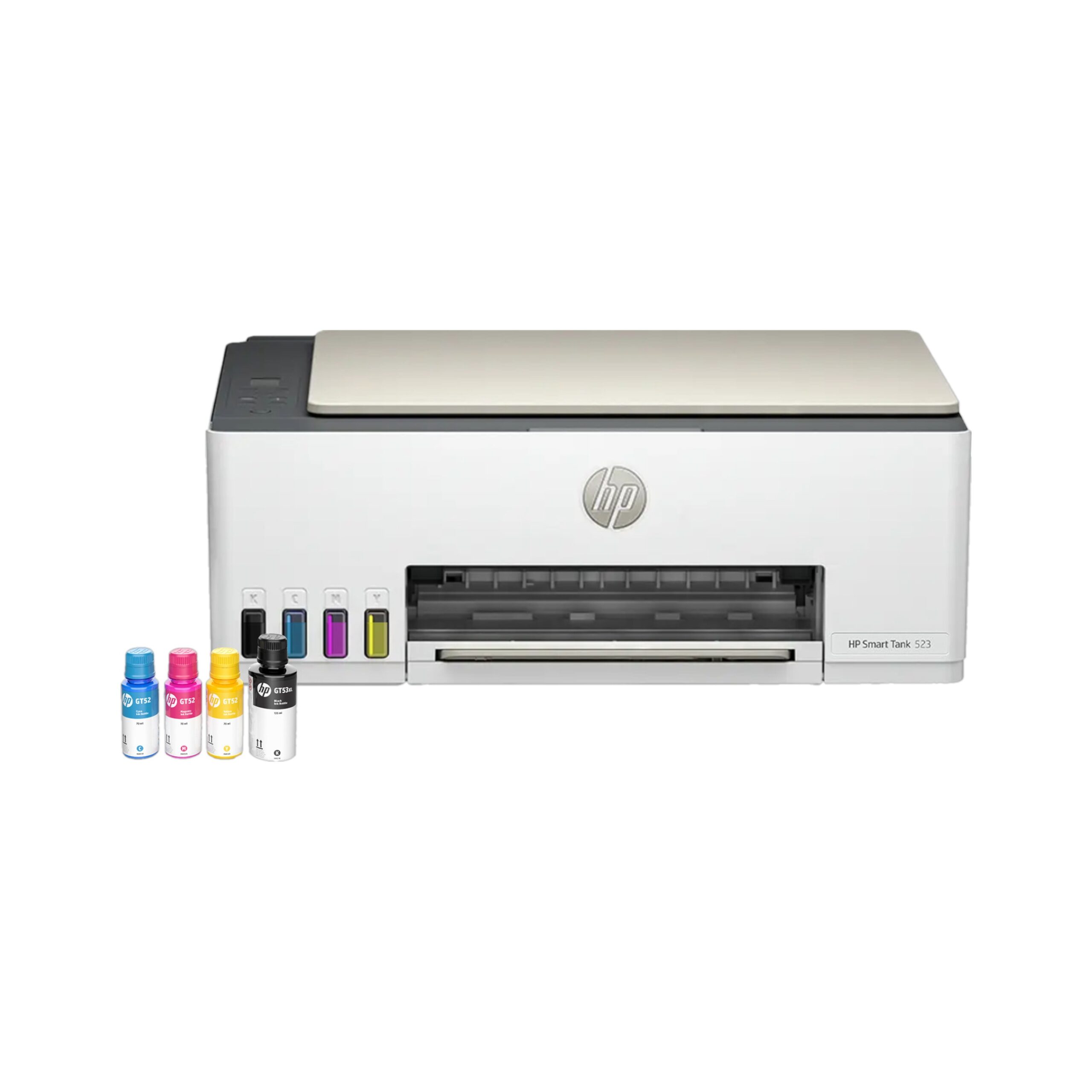
HP Printer WiFi Color Ink Tank
- Cash on Delivery
1 Year Warranty - Multi-function Printer
- Versatility at its finest
- Inkjet
- Vibrant colors and sharp details with inkjet printing.
- Color
- Vibrant and accurate color prints.
- USB, WiFi, WiFi Direct
- Wirelessly connect your printer.
- Refillable Ink Tank
- Reduce printing costs with Refillable Ink Tank.
- Max Print Resolution (Mono) 1200 X 1200 dpi
Print Speed Color 5 ppm
Print Speed Mono 12 ipm
Cost per Page (Color) – As per ISO Standards 0.25 Rs.
Cost per Page (Black)- As per ISO Standards 0.1 Rs.
Duplex Print No
Sales Package
In The Box HP Smart Tank 583 All-in-One Printer, HP GT53 90 ml Black Original Ink Bottle, HP GT52 50 ml Cyan Original Ink Bottle, HP GT52 50 ml Magenta Original Ink Bottle, HP GT52 50 ml Yellow Original Ink Bottle, HP Black Printhead, HP Tri-Color Printhead, Power Cord, Ink Caution Flyer, Setup Guide, Reference Guide, Regulatory Flyers, Warranty Flyers
System Requirements
Compatible Operating System
Windows 11, Windows 10, macOS 10.15 Catalina, macOS 11 Big Sur, macOS 12 Monterey
Compatible Inks/Toners
Compatible Colour Cartridge
HP GT52 70ml Cyan Original Ink Bottle, HP GT52 70ml Magenta Original Ink Bottle, HP GT52 70ml Yellow Original Ink Bottle
General
Brand HP
Printing Method Inkjet
Type
Multi-function
Model Name Smart Tank All in One 583
Printing Output
Color
Functions Copy, Print, Scan
Refill Type Refillable Ink Tank
Ideal Usage Home & Small Office
Voice Assistant Compatibility NA
Connectivity USB
Accessories Included 4 Ink Bottles
Interface Support USB, WiFi, WiFi Direct
Color OOV White
Connectivity USB
USB support USB 2.0
Wireless Support Yes
Paper Handling
Auto Document Feeder No
Borderless printing Yes
Media size supported A4, B5, A6, DL Envelope, Legal
Dimensions and Weight
Height 15.726 cm
Width 43.466 cm
Weight 5.03 kg
Depth 36.153 cm - The HP Smart Tank All-in-One Printer, ideal for large-scale printing, is capable of producing up to 6,000 colour and 4,000 black pages with the provided ink. Take advantage of exceptional print efficiency and quality, resulting in crisp text and colourful graphics. With its smart control panel that has low-on-ink sensors and an easy-to-use guided setup, its small style complements any workstation. Dedicated ID copy buttons and a simple desktop setup are among the unique features. HP Smart Advance capabilities are also included for further protection. In addition to rigorous security, text file storing, auto-healing, faxing, and multi-item and book scanning, Smart Advance Solutions also provides these features. The HP Smart Tank All-in-One Printer is perfect for increasing productivity at home or in the business since it combines high volume capacity, quality, and contemporary features in an easy-to-use design. The HP Smart Tank All-in-One Printer offers secure, quick, and easy printing.
Key Takeaways
- Understand the cost-saving benefits of moving to a cartridge-free system.
- Learn how to optimize your device for high-quality document production.
- Master wireless connectivity to print from any mobile device or laptop.
- Discover maintenance routines that extend the lifespan of your hardware.
- Implement simple strategies to reduce paper and supply waste effectively.
Set Up Your HP Printer WiFi Color Ink Tank for Reliable Daily Use
Prepare your device carefully to support reliable daily performance. A clear installation plan prevents technical issues and keeps work moving. These steps prepare your wireless hp printer for any task.
Check the Printer’s Placement, Power, and Ventilation
Choose a flat, stable surface that can support your device. Place it near a reliable outlet, and avoid long extension cords that may cause power drops. Proper ventilation matters, so keep the printer away from walls and cabinets during heavy print jobs.
Leave enough space around the unit for paper loading and maintenance. You should reach the ink tanks and paper tray without moving it. This preparation makes your easy setup process easier.
Fill the Correct HP Ink Tank Without Spills or Air Gaps
Match each ink bottle to the correct color tank on your printer. Open the tank cover slowly, then insert the bottle nozzle firmly for a secure seal. Filling the tanks slowly prevents overflow and keeps air gaps from forming in the tubes. Are You Getting the Most Out of Your HP Printer WiFi Color Ink Tank?
Check the ink levels after filling to keep them within the marked range. Keep the area clean to protect your printer from stains. A steady hand during the first fill helps maintain print quality.
Connect the Wireless HP Printer to a 2.4 GHz Wi-Fi Network
Most modern ink tank models need a 2.4 GHz network for stable wifi connectivity. Before pairing, make sure your router broadcasts this frequency. With a combined band, temporarily disable the 5 GHz signal for the initial handshake. Are You Getting the Most Out of Your HP Printer WiFi Color Ink Tank?
Use the HP Smart App for Phone and Laptop Setup
Download the HP Smart app on your smartphone or laptop to simplify configuration. The app offers guided steps and detects your device automatically. Follow the prompts to connect your printer to the local network and register your account for seamless printing. Are You Getting the Most Out of Your HP Printer WiFi Color Ink Tank?
Update Drivers, Firmware, and Print Preferences
After connecting, check for firmware updates through the app or official support website. These updates often add critical patches that improve wifi connectivity and system stability. Current software is an important part of an easy setup routine. Are You Getting the Most Out of Your HP Printer WiFi Color Ink Tank?
Print an Alignment and Nozzle Check Page
Finish by printing an alignment page to calibrate the printheads. This step registers colors correctly and keeps text sharp. A final nozzle check confirms that ink flows through every channel, preparing your printer for daily work.
Improve Color Printing Quality and Speed
The right printer settings help you create vibrant, professional documents at home. Match your paper to the software settings for high-quality prints and efficient use. Are You Getting the Most Out of Your HP Printer WiFi Color Ink Tank?
Select the Right Paper for Documents, Photos, and School Projects
Paper finish and weight affect how ink absorbs. For school projects or photos, choose glossy or matte photo paper to keep colors sharp and vivid. Standard A4 copier paper suits daily text documents, but heavy ink coverage may cause bleeding. Are You Getting the Most Out of Your HP Printer WiFi Color Ink Tank?
Match Print Quality Settings to the Task
HP printer software lets you switch modes to balance speed and ink use. The right setting prevents waste while meeting your specific needs. Are You Getting the Most Out of Your HP Printer WiFi Color Ink Tank?
Use Draft Mode for Internal Documents
Select Draft mode when you need fast printing for rough drafts or internal notes. It uses much less ink and works faster when perfect results are not needed. Are You Getting the Most Out of Your HP Printer WiFi Color Ink Tank?
Choose Normal or Best Mode for High-Quality Prints
For certificates, presentations, or family photos, select Normal or Best mode. These settings increase resolution and drying time, producing crisp text and rich, accurate colors. Although they take longer, these modes are essential for professional results. Are You Getting the Most Out of Your HP Printer WiFi Color Ink Tank?
Set Accurate Color, Border, and Orientation Preferences
Before a job, check orientation and border settings in the print dialog box. Choose portrait or landscape to fit your layout. Borderless printing can make photos resemble professional lab prints.
Use the Correct Paper Size for A4, Legal, and Photo Printing
Make sure print settings match the physical paper loaded in the tray. Mismatched sizes can skew text or cut off margins. For standard A4, legal-sized documents, or 4×6 photo paper, the printer needs each dimension to align the ink heads correctly. Are You Getting the Most Out of Your HP Printer WiFi Color Ink Tank?
Reduce Delays When Printing From Multiple Wi-Fi Devices
When several devices share one printer, the print queue can become congested. For fast printing, send one large job instead of multiple small requests at once. If delays occur, clear the print queue on your computer or smartphone to reset the connection. Are You Getting the Most Out of Your HP Printer WiFi Color Ink Tank?
Prevent Smudges, Banding, and Faded Colors
If your color printing looks streaky or faded, a clogged nozzle or wrong alignment may be responsible. Run a cleaning cycle in printer software to remove dried ink from the printhead. Also check that paper stays dry and is stored in a cool, moisture-free place to prevent smudging. Are You Getting the Most Out of Your HP Printer WiFi Color Ink Tank?
| Print Mode | Best Use Case | Ink Usage | Speed |
|---|---|---|---|
| Draft | Internal Notes | Low | Very Fast |
| Normal | Daily Documents | Medium | Moderate |
| Best | Photos & Reports | High | Slow |
Maintain Ink Tank Performance and Prevent Common Problems
A steady care routine helps your reliable ink tank printer last longer. Simple preventive tasks keep it ready for every project.
Keep the Printhead and Paper Path Clean
Run Built-In Cleaning Cycles Only When Necessary
Your device has tools that clear blockages, but they use ink. Run a cleaning cycle only when you see faded colors or missing lines on a test page. Using this feature too often wastes ink and may empty the tank early.
Remove Dust and Paper Debris Safely
Dust inside the paper path often causes feeding errors. Use a soft, lint-free cloth to wipe rollers and inner surfaces gently. Avoid using harsh chemicals or compressed air because they can damage sensitive parts.
Prevent Ink Drying During Long Periods of Inactivity
If you do not print for a while, ink can dry inside the nozzles. Modern models keep black ink fresh for up to 12 weeks of inactivity. To be safe, print a small test page at least once a month to keep ink flowing smoothly.
Identify Low Ink, Clogged Nozzle, and Alignment Symptoms
Early warning signs save time and prevent frustration. If documents show banding or smudges, check the alignment. Monitor ink levels in the software dashboard to avoid running dry during a critical task.
Resolve Wi-Fi Disconnections and Offline Printer Messages
Stable wifi connectivity supports a smooth printing experience. If your device appears offline, first check your network.
Recheck the Router, Signal Strength, and Printer Network
Keep your wireless hp printer within a reasonable distance of your router. Thick walls and nearby electronics can weaken the signal and disconnect the printer.
Reconnect Devices After Changing the Wi-Fi Password
If you update your home network credentials, the printer will lose its connection. Run the wireless setup wizard on the printer panel. Enter the new password to restore wifi connectivity.
Handle Paper Jams Without Damaging Internal Components
When a jam occurs, stay calm and turn off the device first. Open the access doors and gently pull the paper out with both hands to prevent tears. Never force the paper because it can damage the delicate rollers inside your wireless hp printer.
Lower Printing Costs in an Indian Home or Small Office
Managing printing costs matters for busy Indian homes and small offices. Focus on long-term operating costs instead of only the purchase price. Modern ink tank technology helps control your budget when you manage supplies wisely.
Calculate Ink Tank Cost Per Page Before Large Print Jobs
Do not judge ink value by the bottle price alone. Calculate cost per page by dividing ink price by its expected page yield. This simple math shows the true economic impact of your printing habits.
Use Duplex Printing and Page Preview to Reduce Waste
Paper waste creates a hidden cost that grows over time. Use print preview to catch formatting errors before printing. Duplex printing uses both sides and cuts paper use in half.
Choose Genuine HP Ink and Compatible Paper Carefully
Unverified supplies may produce poor results or damage your printhead. Check the bottle series for your exact printer model. High-quality, compatible paper prevents jams and keeps your color printing professional.
Combine Print Jobs to Limit Cleaning and Ink Consumption
Each printer startup begins a small cleaning cycle that uses some ink. Group documents and print them in one batch. This reduces maintenance cycles and preserves ink longer.
Decide When to Print in Color and When Black-and-White Is Enough
Not every document needs a full range of colors. Save color printing for presentations, school projects, or photographs. Use grayscale for drafts and office memos to extend your color ink supply.
Store Extra Paper and Ink Properly in India’s Heat and Humidity
India’s climate can damage printing supplies without proper storage. Keep unopened ink bottles and paper reams in a cool, dry place away from sunlight. Sealed packages block moisture, which can curl paper or weaken ink.
HP Smart All In One 589 Multi-function WiFi Color Ink Tank Printer (Color Page Cost: 0.67 Rs. | Black Page Cost: 0.47 Rs. | Borderless Printing) Print, Copy & Scan, Up to 12 IPM Mono / 5 IPM Color, Yield: Up to 4,000 Black / 6,000 Color Pages, In-Box Ink Included
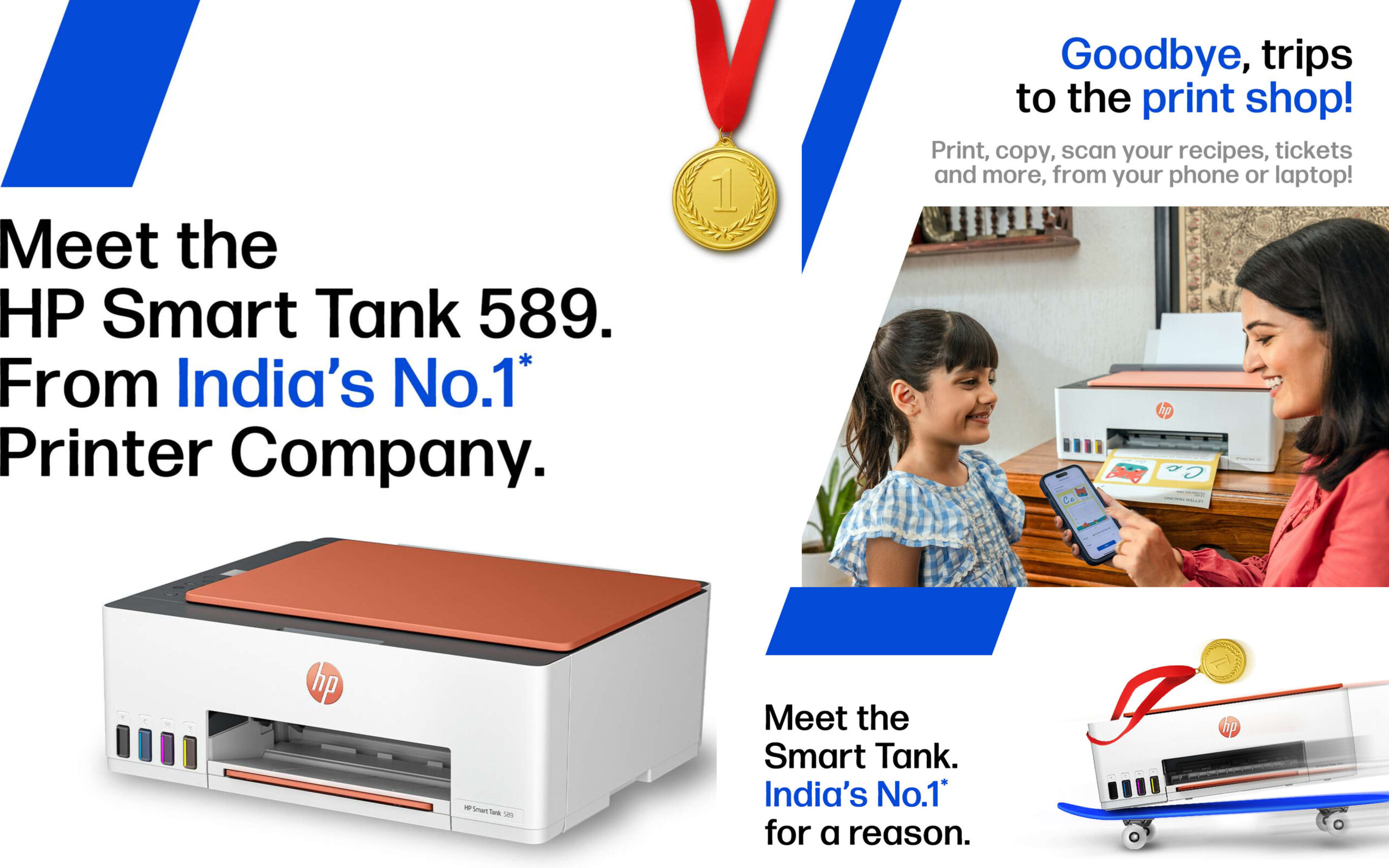
HP Printer WiFi Color Ink Tank
- Cash on Delivery
1 Year Warranty - Multi-function Printer
- Versatility at its finest
- Inkjet
- Vibrant colors and sharp details with inkjet printing.
- Color
- Vibrant and accurate color prints.
- USB, WiFi, WiFi Direct, Wireless, WiFi
- Connect your printer with USB.
- Refillable Ink Tank
- Reduce printing costs with Refillable Ink Tank.
- Max Print Resolution (Colour) 4800 X 1200 dpi
Max Print Resolution (Mono) 4800 X 1200 dpi
Print Speed Color 5 ipm
Print Speed Mono 12 ipm
Cost per Page (Color) – As per ISO Standards 0.67 Rs.
Cost per Page (Black)- As per ISO Standards 0.47 Rs.
Duplex Print No
Sales Package
In The Box HP Smart Tank 589 All-in-One Printer; HP GT53XL 135-ml Black Original ink Bottle; HP GT52 50-ml Cyan Original Ink bottles; HP GT52 50-ml Magenta Original Ink bottles; HP GT52 50-ml Yellow Original Ink bottles; HP Black Printhead; HP Tri-color Printhead; Power cord; Ink caution flyer; Setup guide; Reference guide; Regulatory flyers; Warranty flyers
Copy
Maximum Multicopy 99 Pages
System Requirements
Compatible Operating System
Windows 11; Windows 10; Windows 7; Android; iOS; macOS 12 Monterey; macOS 11 Big Sur; macOS 10.15 Catalina
Compatible Inks/Toners
Compatible Colour Cartridge
HP GT52 70-ml Cyan Original Ink Bottle,
HP GT52 70-ml Magenta Original Ink Bottle,
HP GT52 70-ml Yellow Original Ink Bottle
Compatible Black cartridge
HP GT53XL 135-ml Black Original Ink Bottle,
HP GT53 90-ml Black Original Ink Bottle
General
Brand HP
Printing Method Inkjet
Type Multi-function
Model Name Smart All In One 589
Printing Output Color
Functions Print, Copy, Scan
Refill Type Refillable Ink Tank
Ideal Usage Home & Small Office
Voice Assistant Compatibility NA
OS Supported Windows, macOS, iOS
Connectivity USB
Accessories Included 4 Ink Bottles
Interface Support USB, WiFi, WiFi Direct, Wireless, WiFi
Color Moab White
Power and Operating Requirements
Power consumption (manual-off) 0.109 w
Power consumption (active) 3.023 w
Connectivity USB
USB support USB 2.0
Wireless Support Yes
Paper Handling
Media types supported
HP Smart app; Apple AirPrint; Mopria Print Service; HP Print Service Plugin (Android printing); Wi-Fi Direct Printing
Auto Document Feeder No
Borderless printing Yes
Media size supported 88.9 x 127 to 215.9 x 355.6 mm, A4; B5; A6; DL envelope, legal
Dimensions and Weight
Height 6.19 inch
Width 17.11 inch
Depth 14.23 inch - You can conveniently print documents, images, and assignments with the help of the HP Smart Tank 589 All-in-one Colour Printer. Thanks to its hassle-free mobile setup, two-sided printing, guided buttons, low-ink sensors, self-healing Wi-Fi, and high-quality printouts, this printer ensures high levels of productivity. In addition, you can conveniently print and scan from wherever you go with this printer as it is integrated with the HP Smart app. Moreover, this printer delivers a hassle-free printing experience with its smart-guided buttons, which illuminate and guide you during printing.
Balance Fast Printing With Long-Term Ink Efficiency
fast printing helps with urgent deadlines but is not needed for every task. Use high-speed modes only when you must finish quickly. For standard documents, standard or draft quality supports fast printing while saving ink.
Conclusion
Your hp printer wifi color ink tank supports productivity at home or in a small office. Proper setup, smart paper choices, and regular care help you get the best results.
The HP Smart Tank series produces thousands of pages through its efficient design. This reliable ink tank printer offers a cost-effective way to handle daily documents and creative projects. Use genuine ink and keep the paper path free of debris to gain the most value.
Systematic wireless troubleshooting keeps your workflow smooth and uninterrupted. These habits lower running costs and deliver high-quality prints that stand the test of time. Take control of your printing experience and enjoy professional results at your desk.